Watchlists and alerts
Watchlists
Lists of symbols with live prices, sections, colour flags and your own order.
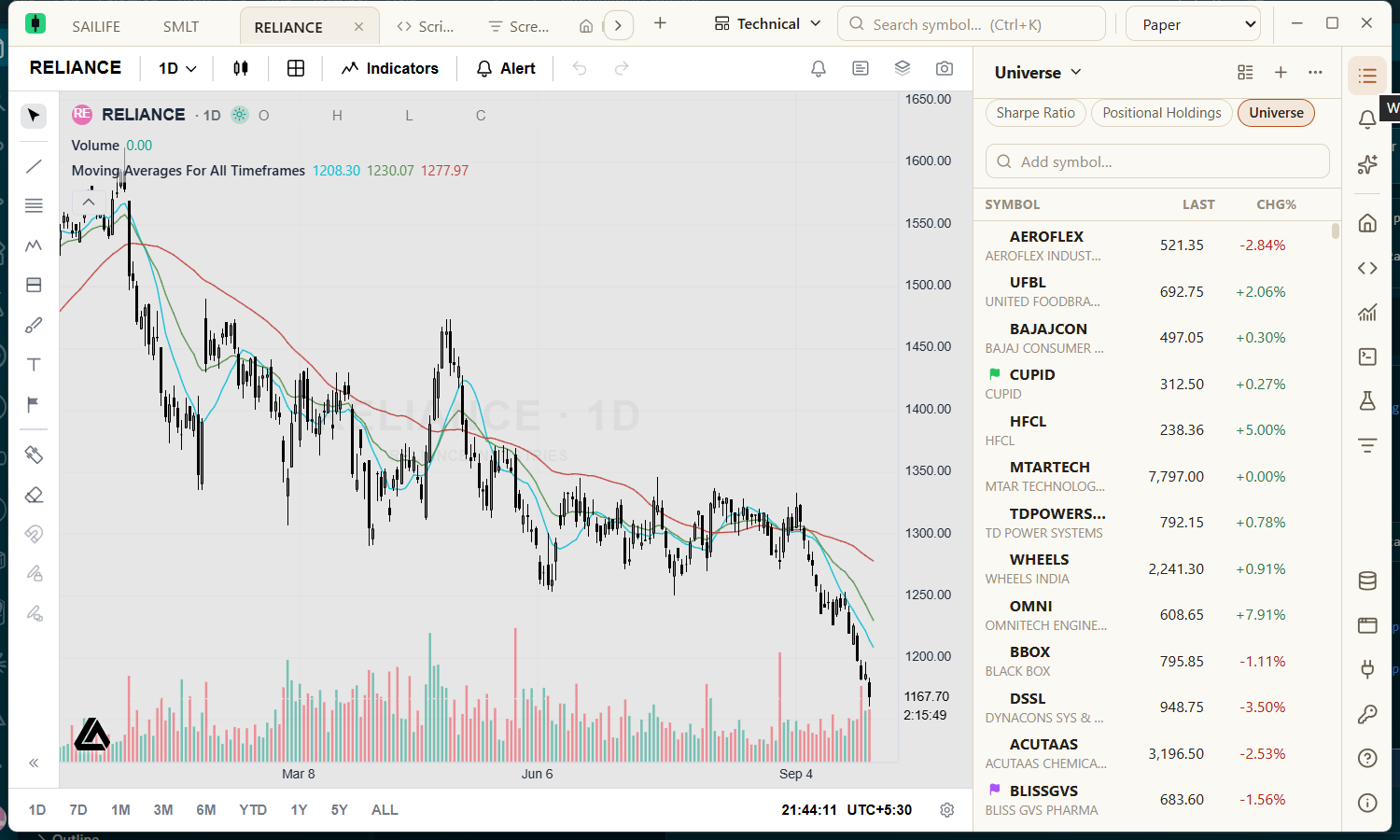
Creating a list and adding symbols
- Show the watchlist with
Alt+Wor the Watchlist icon. - Use + to create a list, or the list name at the top to switch lists.
- Type in Add symbol… to search and add a symbol.
Click a row to open that symbol on the active chart; ↑ and ↓ step through the list. To add the symbol on a chart, right-click the chart and point to Add SYMBOL to watchlist.
Flagging a symbol
- Click the flag before a ticker to flag it with the colour you last used (red at first).
- Right-click the flag, or click an already-flagged one, to choose red, orange, yellow, green, blue or purple, or Remove flag.
- A flag belongs to the symbol, not one list — it shows on every list the symbol is on.
- Each colour also has its own list under Flagged in the list selector, holding every symbol with that colour.
Quick access
Up to five lists can be starred. They appear as buttons across the top of the panel, so one click switches between them, and they are listed first when you add a symbol from a chart's right-click menu.
Browsing all watchlists
The All watchlists button in the panel header opens a dialog listing every list with its symbol count. From there you can search, open, star, rename or delete lists and create new ones.
The Indices watchlist
With Zerodha connected, Create Indices watchlist builds a list of Indian indices in three sections: Broad market, Sectors and Themes. Indices your broker does not list are skipped.
Row menu
| Item | What it does |
|---|---|
| Flag | Marks the symbol with a colour or clears it. |
| Add alert… | Opens the price alert form for the symbol. |
| Open in new tab | Opens the symbol in a new chart tab. |
| Move to top | Moves the symbol to the top of the list. |
| Add section above | Inserts a section heading above the row. |
| Remove | Removes the symbol from the list. |
Sections, order and sorting
- Sections group the symbols that follow them. Click a section's name to fold it; its menu renames or deletes it.
- Drag any row, or a whole section, to a new position.
- Sort by clicking a column heading (symbol, last price or change). While sorted, sections are hidden and rows cannot be dragged; click the heading again to return to your own order.
The list menu
The More (⋯) menu beside the list name renames or deletes the list, adds a section, manages quick access and imports symbols. Import from file… reads a TradingView watchlist export or a CSV file with a Symbol column; anything that cannot be matched is reported. Lists can also be filled from the Screener, a Python script, a Study or kept fresh by a scheduled script.